Shared Environments
Shared environments allow multiple users or applications to access and use the same underlying infrastructure. This feature enables you to focus more on application logic rather than infrastructure management.
Use the Shared Environments page to book cloud environments for specific periods and connect CI/CD pipelines so deployment metadata appears alongside your cost data.
Where to find it
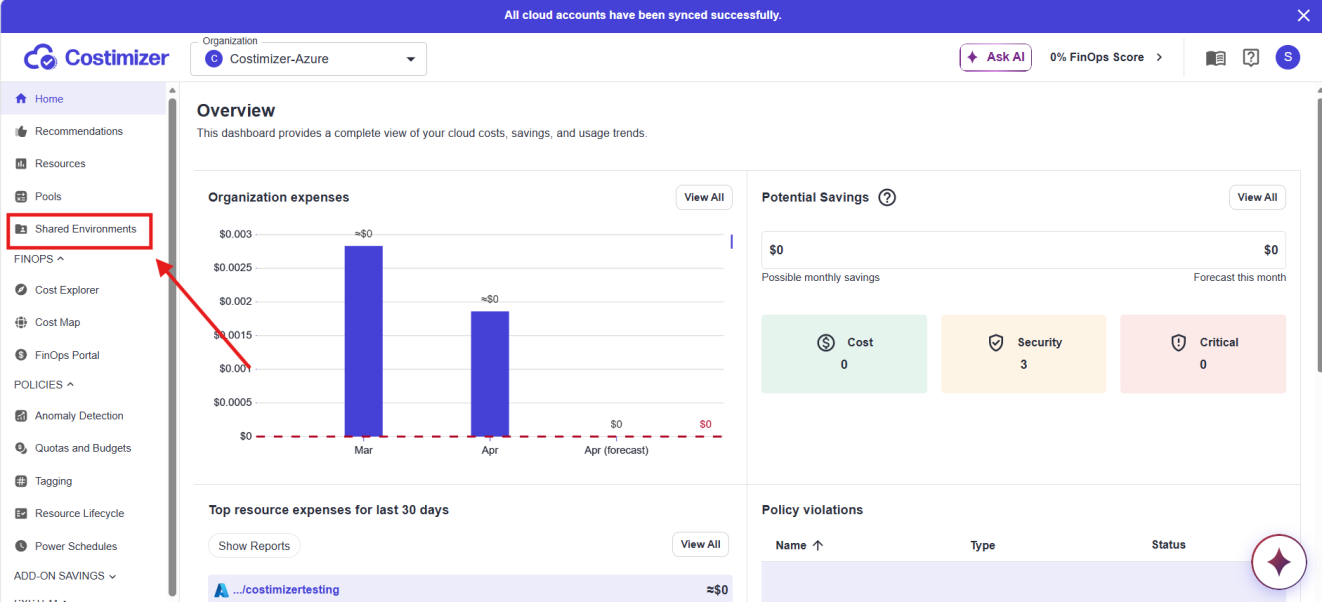
From the Costimizer sidebar, Click on Shared Environments. You'll land on the Shared Environments list page.
What you can do
- Details — Monitor the status of the environment in a table or calendar view.
- Jira plugin — Simplify and organize shared access to environments, and mark Jira tickets associated with the currently used environments.
Actions
- Add a Shared Environment — Create a new environment by clicking the + Add Shared Environment button. Specify the name, type, and properties.
- Filter the data — Use the Only accessible by me filter or set the status to Available to view environments ready for use.
- Manage environment — Click on a table row to edit, delete, or view detailed information about an environment.
Tips
Monitor resource usage regularly to prevent overconsumption, manage costs effectively, and identify potential security issues or inefficiencies.
What you'll learn
- Connect GitLab CI/CD to a Shared Environment — Send pipeline result, commit ID, branch, and trigger user to Costimizer automatically after every run.