Check detail view
Understanding the check detail view
Click the blue timestamp link in any completed row to open the full detail view for that check.
Summary cards
Five cards appear across the top of the detail page:
| Card | What it shows |
|---|---|
| Status | Completed (for finished checks) or In progress. Completed checks have all results available. |
| Savings | Estimated monthly savings if all identified duplicates were deleted. Shows approximately $0 when within the free storage tier. |
| Scanned objects | Total number of objects that were read and compared during this check. In the example from the video: 23 objects. |
| In X duplicate objects | The total size of duplicate content found. The label shows how many objects are duplicated. Example: 18 duplicate objects, 463.601 KB. |
| Duration | How long the scan took to run. Scan times vary based on the total number of files in the bucket rather than the total storage size. Buckets containing thousands of small files will naturally take longer to process than buckets holding a few files. |
Below the summary cards, the page shows:
- Selected buckets — The container names that were included in this scan.
- Minimum object size — The file size filter applied to this check (default: 0 MB).
The cross-container duplicate matrix
The main body of the detail page is a grid showing every container on both the row axis (left) and column axis (top). Each cell in the grid shows the estimated monthly savings from duplicates shared between those two specific containers.
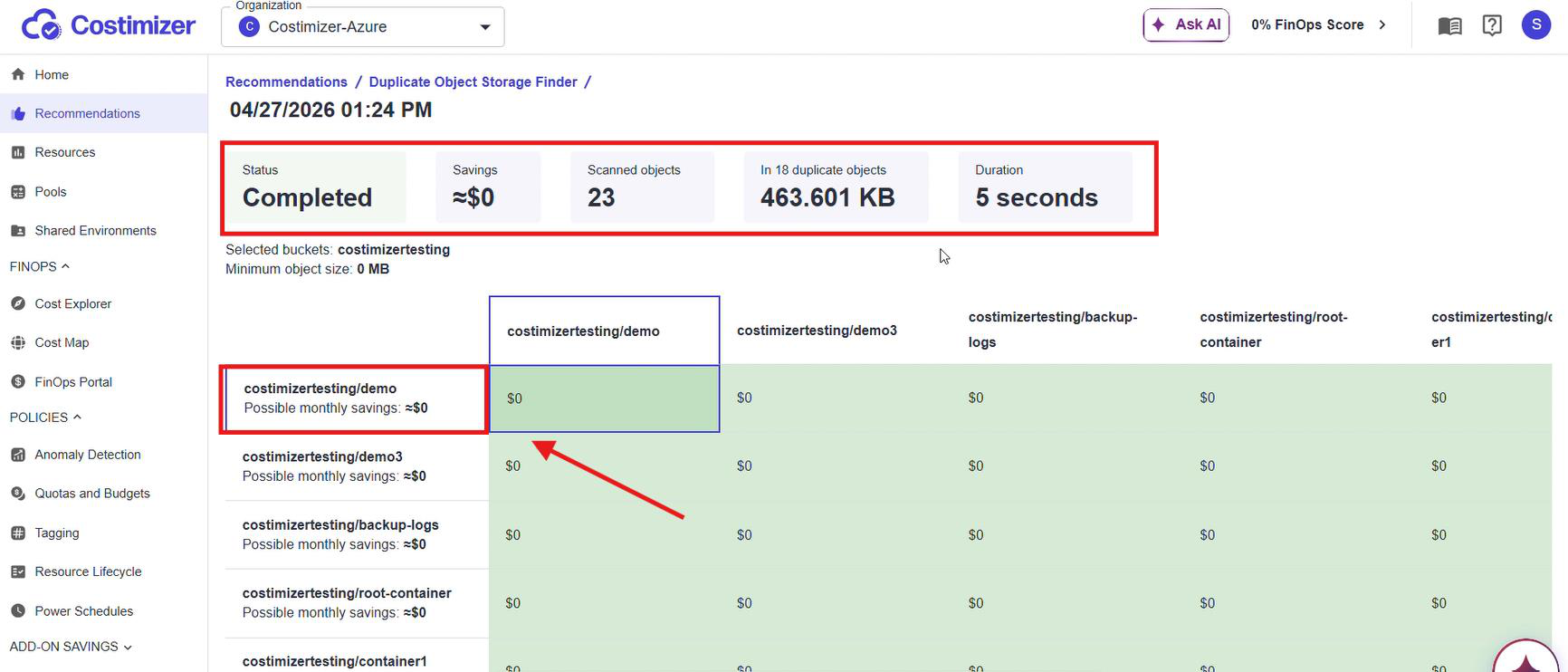
How to read the matrix:
- Find a container in the left column (row headers). Read across to see which other containers share duplicate content with it.
- Find a container in the top row (column headers). Read down to see which containers have duplicates matching it.
- A highlighted cell (green shading) means duplicates exist between those two containers.
- A $0 in a cell means duplicates exist, but the storage cost is within the free tier. The duplicates are still real; you can see their size in the bucket detail.
Savings showing $0 does not mean there are no duplicates. It means the duplicate storage is within your cloud provider's free tier (typically 5 GB/month for most providers). As your data scales beyond the free tier, each check will start showing real dollar figures in these cells.
Bucket Duplicates panel
Click any cell in the matrix to open the Bucket Duplicates side panel for that container pair. This panel shows:
- Bucket name — The specific container you clicked on.
- Cloud account — The data source the bucket belongs to.
- Total objects with duplicates — How many objects in this container have at least one duplicate elsewhere. Example: 4 / 6 means 4 out of 6 objects in this container are duplicates.
- Total duplicates size — Duplicate content size / total size of all objects checked. Example: 275.266 KB / 282.135 KB means nearly all content in this container is duplicated elsewhere.
- Possible monthly savings — Estimated savings if duplicates from this specific container pair were removed.
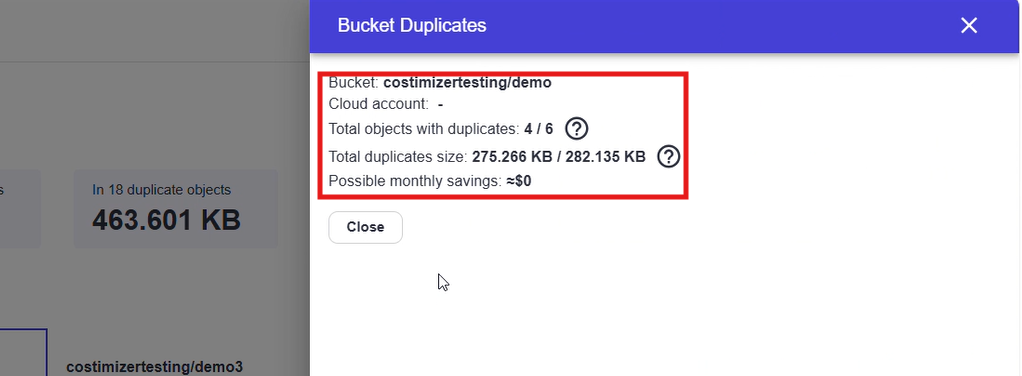
Click Close to dismiss the panel and return to the matrix view.
Tips
- Regular audits — Routine checks help maintain organization, free up storage space, and reduce unnecessary costs associated with storing duplicates.
- Use minimum file size — On buckets with many small objects, set a minimum file size to focus on duplicates that matter and speed up scans.
- Scan across accounts — When CI/CD or backup processes replicate artefacts across environments, select multiple data sources in a single check to catch cross-account duplicates.
- Adjust thresholds — Tune the Requiring attention and Critical settings so flagged checks match your team's cost sensitivity.