Page and check history
Page overview
The page has three main elements:
Page description text
At the top of the page, below the title, Costimizer shows a four-line description of how the tool works. You can read this once to orient yourself. It explains that the tool scans every file in selected buckets, identifies duplicates based on content, and estimates cost savings based on regional pricing.
Run the check button
Run check is the green button at the top left of the table area. Clicking it opens the check configuration modal, where you select which buckets to scan. Every scan you run appears as a new row at the top of the history table below.
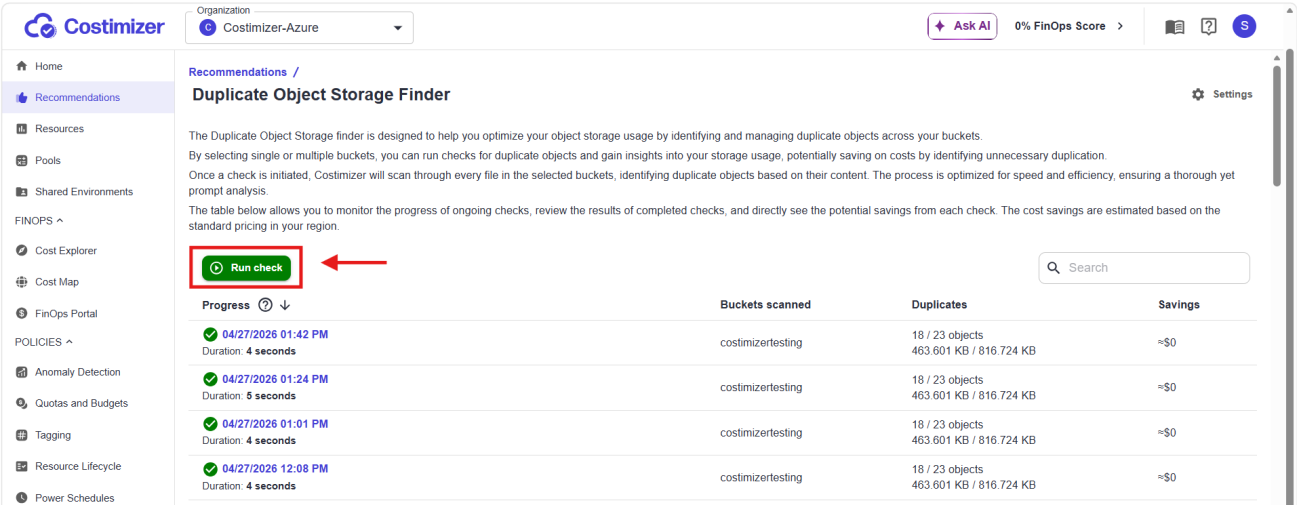
Settings (gear icon)
The Settings gear icon sits at the top right of the page. Clicking it opens a configuration panel with two financial thresholds:
| Threshold | Default | Effect |
|---|---|---|
| Requiring attention | $50 | Checks where estimated savings exceed this amount are flagged in yellow. |
| Critical | $200 | Checks where estimated savings exceed this amount are flagged in red. |
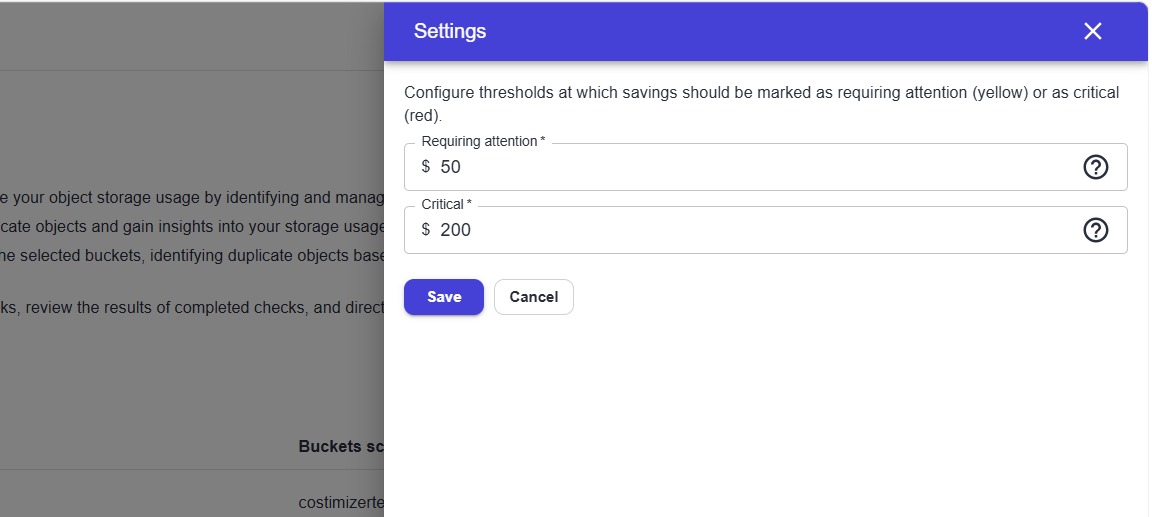
Adjust these thresholds to match your organisation's cost sensitivity. A small team might pay attention to $10. An enterprise team running hundreds of buckets might push critical to $500.
The check history table
Below the Run check button, the page shows a full history of every scan that has been run. This persists across sessions; every check ever run for your organisation appears here.
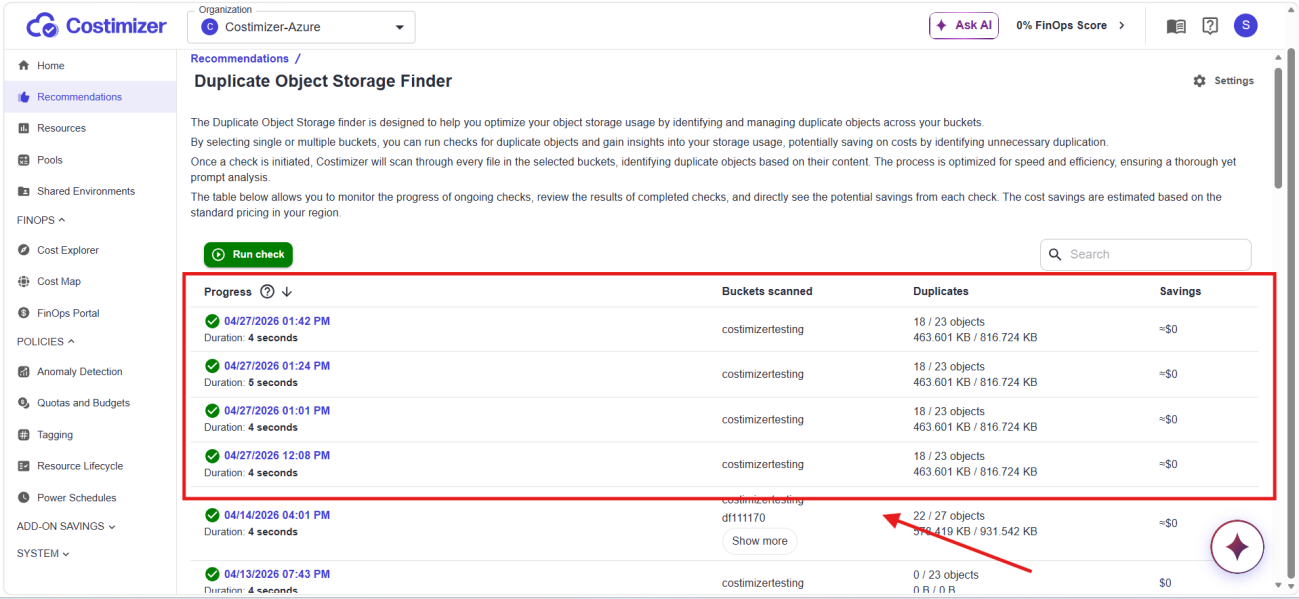
The columns in the table are:
| Column | What it shows |
|---|---|
| Progress | Check the status with a timestamp. A green checkmark means the check was completed successfully. A blue spinning icon means it is currently running. Shows duration below the timestamp once complete. |
| Buckets scanned | The name or names of the storage containers included in this check. If multiple buckets were selected, each is listed. A Show more link appears when more than two buckets are included. |
| Duplicates | Two numbers: X / Y objects mean X objects out of Y total are duplicates. Below that, the duplicate size / total scanned size in KB or MB. |
| Savings | The estimated monthly cost saving if all duplicates in this check were removed. Shows $0 when storage is within the free tier. As storage grows past the free tier, real dollar amounts appear here. |
Click any row (by clicking the blue timestamp link) to open the full detail view for that check.
In-progress checks
A check that is currently running shows In progress for X seconds instead of a duration. The Duplicates and Savings columns show a dash (–) until the check completes.
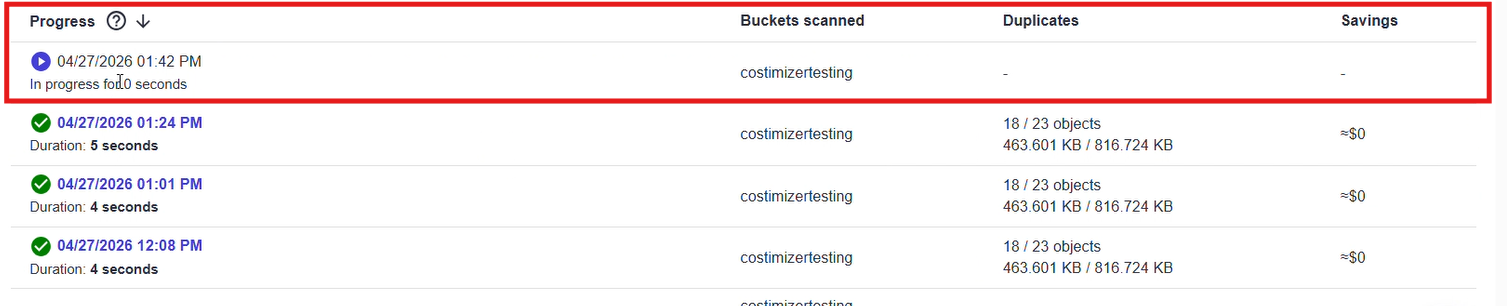
Please note that the time it takes to finish depends entirely on the number of files (volume) rather than their total storage size. In simple words, scanning 500 small files will take longer than scanning a single 50 GB file.
Next step
When you are ready to scan buckets, continue to Running a new check.